Hyperoptic Total Wi-Fi and Minihub Review 2026
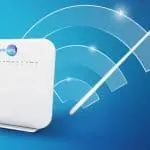
Hyperoptic Total Wi-Fi extends the wireless network from a compatible Hyperhub into rooms with a weaker signal. The service includes one Minihub, uses the same Wi-Fi name and password throughout the home, and can connect to the main router wirelessly or through an Ethernet cable.
It is most useful when the broadband connection reaching the Hyperhub is fast enough but Wi-Fi performance drops in bedrooms, home offices or on another floor. It does not increase the speed of the underlying Hyperoptic broadband package.
| Plan | Speed | Price | |
|---|---|---|---|
 1Gb + Total WiFi 1Gb + Total WiFi24 month contract |
900Mb avg |
£22 / month More details |
|
| FTTP. Free Setup. Discounted price. |
Hyperoptic Total Wi-Fi at a glance
| Feature | Details |
|---|---|
| Standard price | £7 a month |
| Equipment included | One Minihub and a compatible Hyperhub where required |
| Additional Minihub | Hyperoptic can supply one further unit after troubleshooting |
| Network | One Wi-Fi name and password |
| Connection to Hyperhub | Wireless or Ethernet |
| Contract effect | Existing customers can receive a new package, price and minimum term |
| Equipment ownership | Hyperoptic retains ownership |
| Best suited to | Hyperoptic homes with weak Wi-Fi in specific rooms |
Quick verdict
Hyperoptic Total Wi-Fi is an easy route to wider Wi-Fi coverage for customers who want Hyperoptic to supply and manage the equipment. One network name keeps everyday use simple, while Ethernet backhaul gives the Minihub a more reliable connection when running a cable is practical.
The ongoing subscription is the main disadvantage. Over a longer period, an independently purchased mesh system can cost less and give experienced users more control. Total Wi-Fi remains the easier option for customers who value provider assistance and do not want to choose or configure separate equipment.
The service cannot guarantee full speed in every room. Building materials, interference, Minihub placement and the wireless capability of each device still affect performance.
| Advantages | Limitations |
|---|---|
| Hyperoptic supplies compatible equipment | Adds an ongoing monthly charge |
| One Wi-Fi name and password | Does not increase the broadband package speed |
| Wireless and Ethernet installation options | Coverage still depends on placement and the property |
| Provider assistance with setup and faults | Cannot combine with third-party mesh equipment |
| A further Minihub can be supplied after troubleshooting | Adding the service can restart an existing minimum term |
Total Wi-Fi and the Minihub explained
The Hyperhub remains the main router. The Minihub acts as another wireless access point, extending the network into part of the property that receives a weaker signal from the Hyperhub.
Both units use the same Wi-Fi name and password. Compatible phones, laptops and other devices can move between them without joining a second network manually. Mesh steering helps with this process, although the device itself also decides when to change access point. An older phone or laptop can remain connected to a more distant unit for longer than expected.
Unlike an independently configured Wi-Fi extender, Total Wi-Fi forms one managed Hyperoptic network and uses equipment selected for the customer’s Hyperhub.
The service can improve wireless coverage, but it cannot repair a fault on the incoming broadband connection. Run a wired speed test from the Hyperhub first if every room experiences slow speeds. Our Hyperoptic broadband review explains the provider’s packages, routers, contracts and overall service in more detail.
Minihub models and compatibility
Hyperoptic has supplied Minihubs from Zyxel, ZTE and Nokia. The model received depends on the Hyperhub, existing equipment and available stock.
Do not follow generic installation instructions without checking the manufacturer and model printed on the Minihub label. The correct Ethernet port, setup app and LED meaning vary between hardware families.
| Minihub family | Wireless setup | Wired connection | Weak-link indication |
|---|---|---|---|
| Zyxel | MPro Mesh app | Hyperhub LAN to Minihub LAN | Red connection indicator |
| ZTE H3601 | ZLife Lite app | Hyperhub LAN to Minihub WAN | Flashing green indicator |
| Nokia Beacon | Nokia WiFi app | Hyperhub LAN to Minihub WAN | Solid yellow indicator |
The Zyxel and ZTE Minihubs use Wi-Fi 6 AX1800-class hardware. Nokia equipment differs by model, so customers should not assume that every Hyperoptic Minihub has the same wireless specification.
Total Wi-Fi requires a compatible Hyperhub. Hyperoptic sends a suitable replacement when an existing router cannot operate with the Minihub. The old router must be returned when Hyperoptic requests it.
Customers cannot add a third-party mesh unit to the Total Wi-Fi network. However, Hyperoptic broadband does not prevent the use of an independent mesh system. That equipment operates separately, and Hyperoptic does not configure or troubleshoot it as part of Total Wi-Fi.
Minihub installation and placement
Wireless installation avoids running a cable through the property. Ethernet installation connects the Minihub directly to the Hyperhub and normally gives it a faster, more consistent backhaul connection.
Zyxel Minihub
For a wired installation, connect a LAN port on the Hyperhub to a LAN port on the Zyxel Minihub. Do not use the Minihub WAN port for this model.
The MPro Mesh app guides wireless installation. Allow the unit time to start and connect before moving it to the intended room. A red connection indicator means the wireless link is too weak, so move the Minihub closer to the Hyperhub.
ZTE Minihub
For a wired installation, connect a LAN port on the Hyperhub to the WAN port on the ZTE Minihub.
Use the ZLife Lite app for wireless setup. A flashing green indicator can mean that the wireless link to the Hyperhub is weak. Move the Minihub closer and check the indicator again.
Nokia Minihub
For a wired installation, connect a LAN port on the Hyperhub to the WAN port on the Nokia Beacon.
Use the Nokia WiFi app for wireless setup. A solid yellow light indicates that the connection between the Beacon and Hyperhub is below the preferred level. Moving the unit closer should improve the link.
Placement guide
Place the Minihub towards the weak-signal area, but not inside the dead zone itself. It still needs a good connection to the Hyperhub before it can extend Wi-Fi effectively.
Hyperoptic recommends keeping the Minihub no more than two rooms or one floor from the Hyperhub. Place it in an open position and avoid:
- cupboards and enclosed furniture;
- the floor or a corner of the room;
- large mirrors and metal objects;
- televisions, microwaves and other electrical equipment;
- thick walls or several closed doors between the two units.
A central hallway or open landing often gives a better wireless route than a distant bedroom. Test more than one location before deciding that another Minihub is necessary.
One Minihub or two
One Minihub is included with Total Wi-Fi and is sufficient when the problem affects one section of a typical flat or house. Larger properties, converted buildings and homes with thick internal walls can need another unit.
Hyperoptic does not automatically send two Minihubs with every order. If the first unit cannot deliver adequate coverage, customer support will normally check its placement and connection before supplying one further Minihub.
Adding more wireless nodes does not always improve performance. Units placed too close together can increase interference, while a distant Minihub with a poor wireless link cannot deliver the full capability of the broadband connection. Ethernet backhaul is the better option when the property permits it.
Wi-Fi performance and limitations
Total Wi-Fi gives the greatest benefit when the Hyperhub already receives the expected broadband speed and distance causes the wireless problem. It can improve:
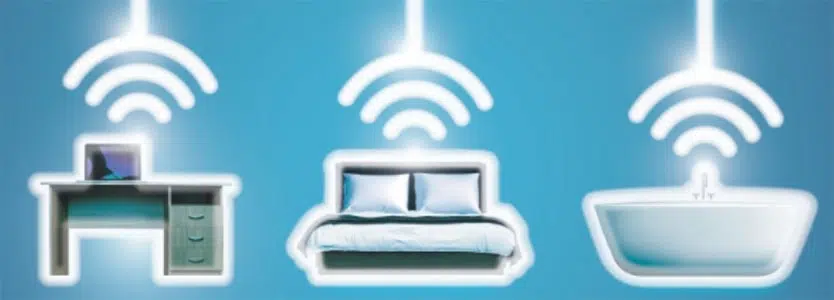
- coverage in a home office or bedroom;
- video calls in rooms farther from the router;
- streaming on televisions located away from the Hyperhub;
- connections on another floor;
- Wi-Fi access in rooms affected by one or two internal walls.
It cannot increase the speed entering the home. A Hyperoptic 150Mb package remains a 150Mbps service after adding Total Wi-Fi, while a Hyperoptic 1Gb package retains its existing broadband speed.
The speed measured beside a Minihub depends on its link to the Hyperhub. Wireless backhaul shares Wi-Fi capacity between the connection to the router and the devices using the Minihub. Ethernet avoids that wireless hop and normally preserves more bandwidth.
| Connection method | Main advantage | Main limitation |
|---|---|---|
| Wireless backhaul | Faster installation with no cable between rooms | Speed depends on distance, walls and interference |
| Ethernet backhaul | More reliable link and greater available bandwidth | Requires a cable between the Hyperhub and Minihub |
Device capability also matters. An older Wi-Fi 5 phone, a laptop with a basic wireless adapter or a device connected to the 2.4GHz band can record a lower speed than newer Wi-Fi 6 equipment. Total Wi-Fi cannot change the radio hardware inside the connected device.
This review does not include an independent home speed test, so it does not claim a particular speed increase. Results vary between properties and rooms.
Price, contract and equipment conditions
Total Wi-Fi is a monthly add-on to a Hyperoptic broadband service. The cost over common periods is shown below.
| Period | Total Wi-Fi cost |
|---|---|
| One month | £7 |
| 12 months | £84 |
| 24 months | £168 |
These totals exclude the broadband package price and any changes shown in the customer’s order summary.
New customers can select Total Wi-Fi while ordering broadband. Existing customers can add it through My Account, but the contract consequences require careful attention.
An existing customer on a 12-month or 24-month package can need to move to a new package and price. This change can also restart the minimum contract period. Check the order summary before accepting the add-on, particularly when the current broadband contract is close to ending.
The Hyperhub and Minihub remain Hyperoptic’s property. Customers must keep the equipment in reasonable condition and return it when requested, including when Hyperoptic replaces a router or the service ends. Missing or damaged equipment can lead to a charge.
Total Wi-Fi compared with an independent mesh system
Total Wi-Fi prioritises simplicity and provider assistance. An independent mesh system prioritises ownership, hardware choice and additional controls.
| Feature | Hyperoptic Total Wi-Fi | Independent mesh system |
|---|---|---|
| Payment | Monthly add-on | Usually an upfront purchase |
| Equipment ownership | Hyperoptic | Customer |
| Setup assistance | Hyperoptic can help with supplied equipment | Hardware manufacturer or retailer |
| Compatibility | Requires a compatible Hyperhub | Depends on the selected mesh system and configuration |
| Hardware choice | Hyperoptic selects the compatible Minihub | Customer selects the brand and model |
| Additional units | One included; a further unit can follow troubleshooting | Customer buys the required number |
| Best suited to | Customers wanting a managed, straightforward service | Customers wanting ownership and more configuration options |
An independent system can cost less over several years because there is no continuing Total Wi-Fi charge. The initial cost is higher, and the customer takes responsibility for installation, firmware, placement and faults involving that equipment.
Our whole-home Wi-Fi and mesh broadband guide compares provider-managed services from across the UK.
Common problems and solutions
| Problem | First action |
|---|---|
| Minihub will not connect | Confirm that the Minihub is compatible with the Hyperhub and use the correct app for the model |
| Weak-link light appears | Move the Minihub closer to the Hyperhub or connect it through Ethernet |
| Good signal but low speed | Test beside the Hyperhub and check the device, Wi-Fi band and backhaul connection |
| Device remains connected to the distant unit | Turn Wi-Fi off and on, update the device and check that both units use the same network details |
| Dead zone remains | Place the Minihub between the Hyperhub and weak area rather than inside the dead zone |
| Several rooms remain weak | Contact Hyperoptic for placement checks and assessment for a further Minihub |
| Wired setup fails | Check the model-specific port: LAN for Zyxel, WAN for ZTE and Nokia |
Restarting the Hyperhub and Minihub can clear a temporary connection fault. If the problem continues, record the light colour, Minihub model and rooms affected before contacting Hyperoptic. These details help the support team identify the next step.
Hyperoptic Total Wi-Fi verdict
Hyperoptic Total Wi-Fi is a good choice for customers who receive the expected speed at the Hyperhub but have weak wireless coverage elsewhere. It keeps setup straightforward, uses one network name and gives customers access to assistance for the supplied equipment.
Ethernet backhaul delivers the best result where a cable can be installed. Wireless setup remains convenient, but Minihub placement becomes more important because the unit must maintain a reliable link to the Hyperhub.
The subscription adds an ongoing cost, as shown in the pricing table. Customers planning to remain with Hyperoptic for several years should compare that cost with an independently purchased mesh system. Existing customers should also check whether adding Total Wi-Fi changes their package price or restarts the minimum term.
Choose Total Wi-Fi for convenient provider-managed coverage. Consider independent mesh equipment when ownership, wider hardware choice and advanced controls matter more than direct assistance from Hyperoptic.
Frequently asked questions
Does Hyperoptic Total Wi-Fi increase broadband speed?
No. It extends Wi-Fi coverage from the Hyperhub. The underlying download and upload speeds remain those of the selected Hyperoptic package.
Does Total Wi-Fi work with every Hyperhub?
No. Total Wi-Fi requires a compatible Hyperhub. Hyperoptic supplies a replacement router when the existing model is unsuitable and requests the old equipment back.
Is one Minihub included?
Yes. Total Wi-Fi includes one Minihub. Hyperoptic can supply one further unit when troubleshooting confirms that the first cannot deliver adequate coverage.
Can the Minihub use an Ethernet connection?
Yes. Ethernet normally gives the Minihub a more reliable connection to the Hyperhub. Use LAN-to-LAN for Zyxel equipment and connect the Hyperhub LAN port to the Minihub WAN port for ZTE and Nokia equipment.
Can I use my own mesh system with Hyperoptic?
Yes, as a separate system. Third-party mesh equipment does not integrate with Hyperoptic Total Wi-Fi, and Hyperoptic does not manage or troubleshoot it as part of the add-on.
Does adding Total Wi-Fi restart a Hyperoptic contract?
It can. Existing customers on a 12-month or 24-month package can receive a new package, price and minimum term when adding Total Wi-Fi. Check the order summary before completing the change.
Do customers own the Minihub?
No. The Hyperhub and Minihub remain Hyperoptic’s property and must be returned when requested. Charges can apply to missing or damaged equipment.
Which app controls the Hyperoptic Minihub?
The app depends on the hardware. Zyxel uses MPro Mesh, ZTE uses ZLife Lite and Nokia uses Nokia WiFi. Check the manufacturer on the Minihub label before starting installation.